

Quick start
This guide takes you from a fresh install to a Laravel app running on https://acme.test. It assumes you have installed Flock.
1. Create or open a project
Flock includes PHP and Composer, so you can create a new app right away:
cd ~/Code
composer create-project laravel/laravel acme
2. Serve it on a .test domain
Either park your code folder, so every subfolder becomes a site, or link a single project.
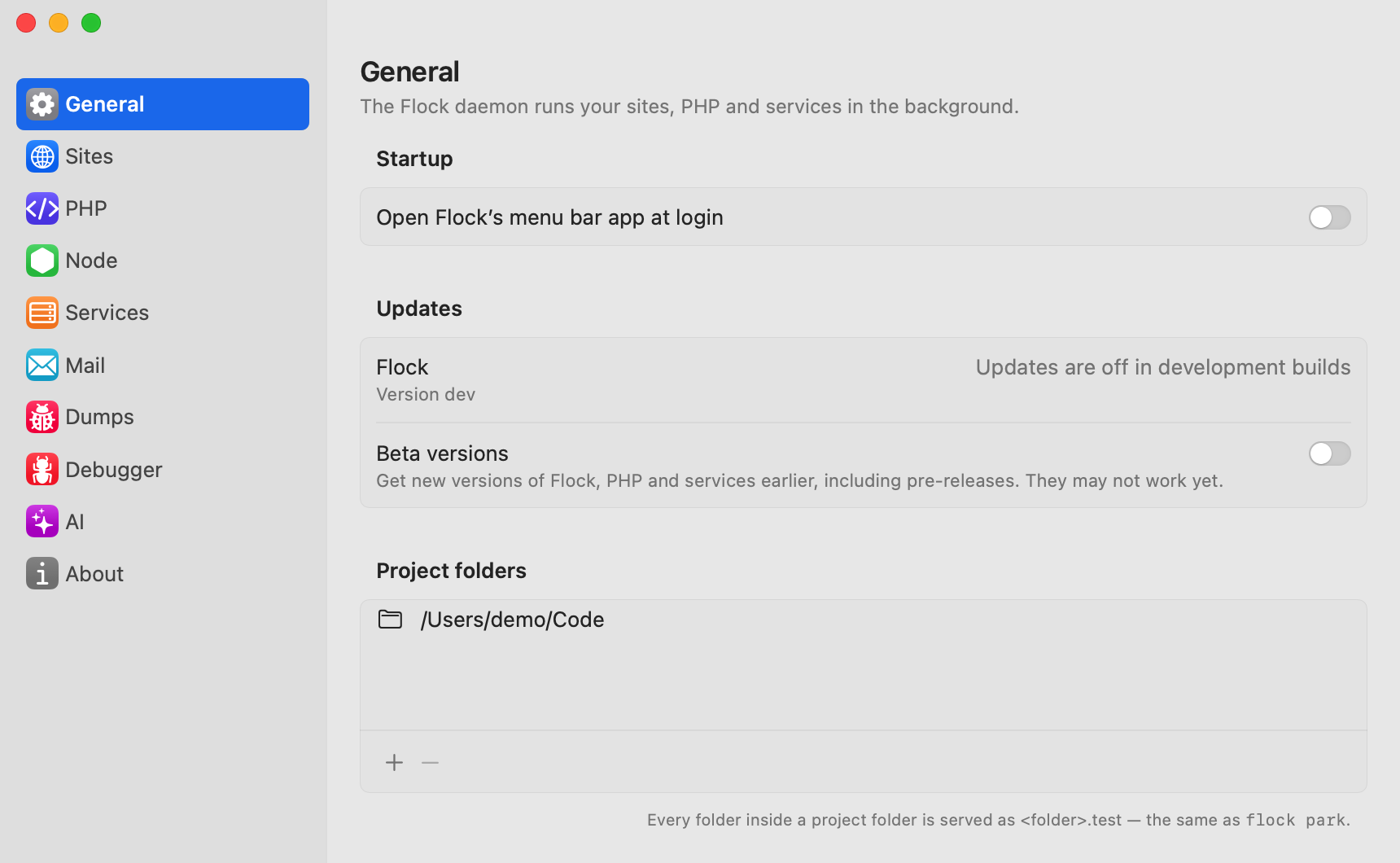
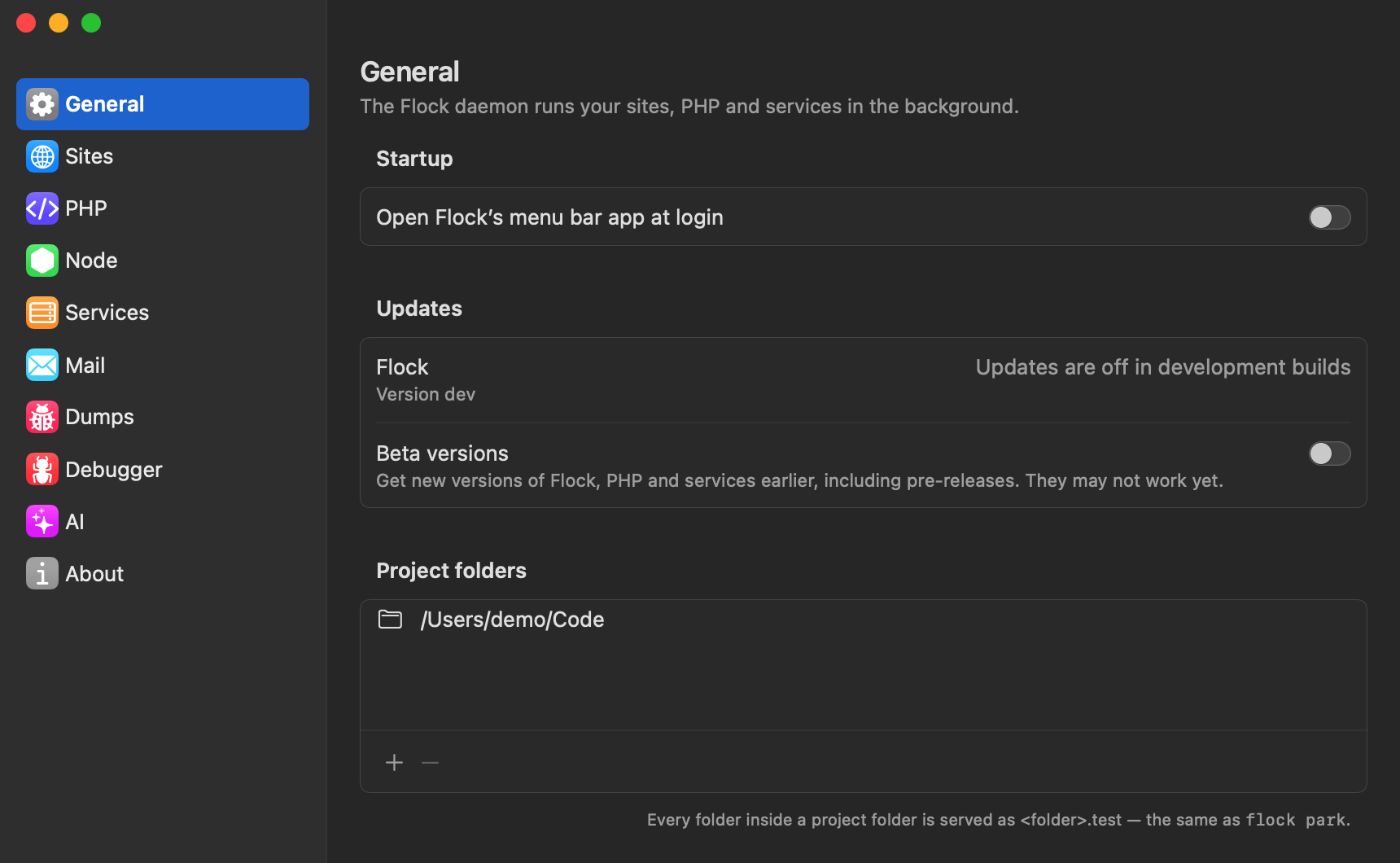
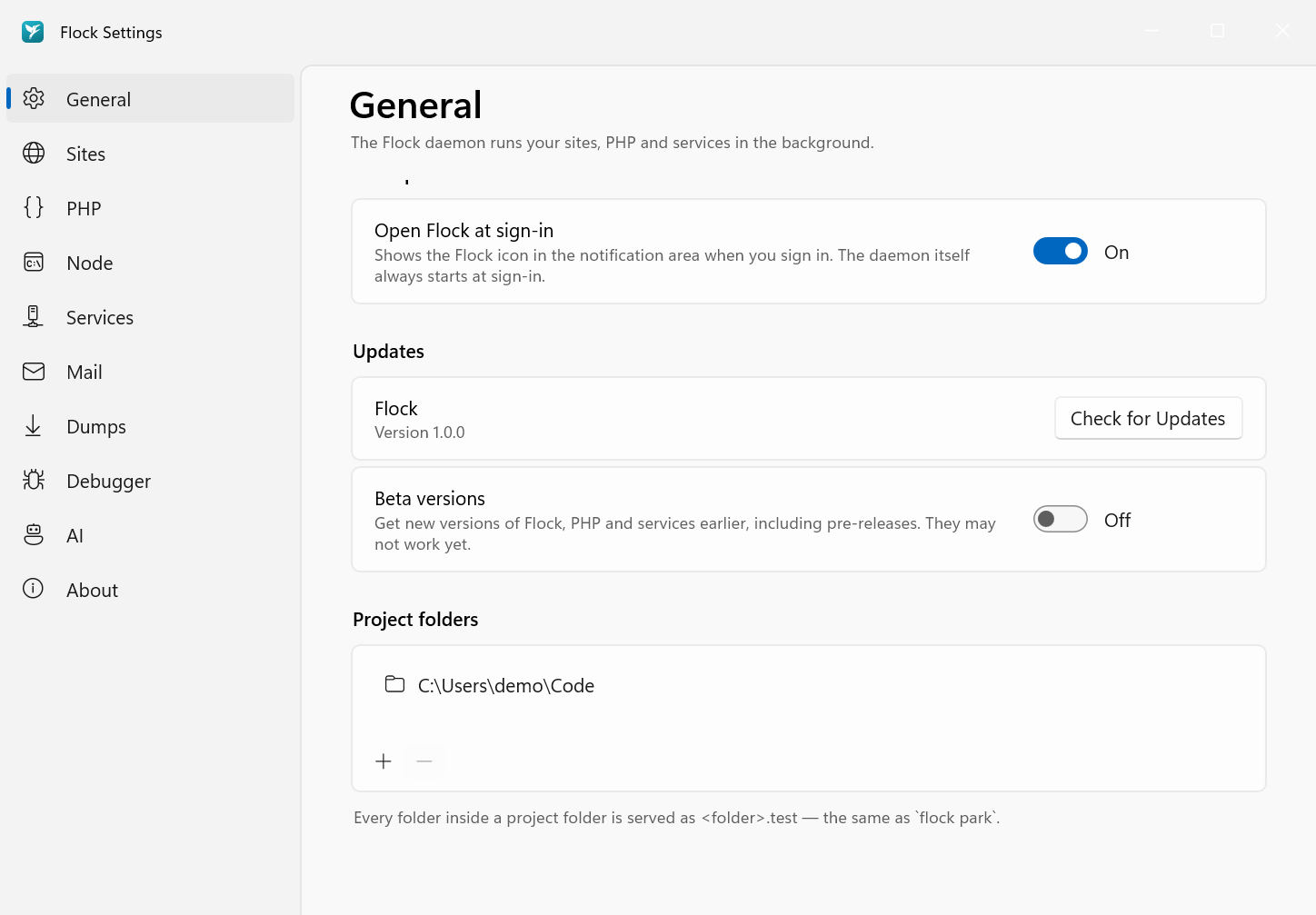
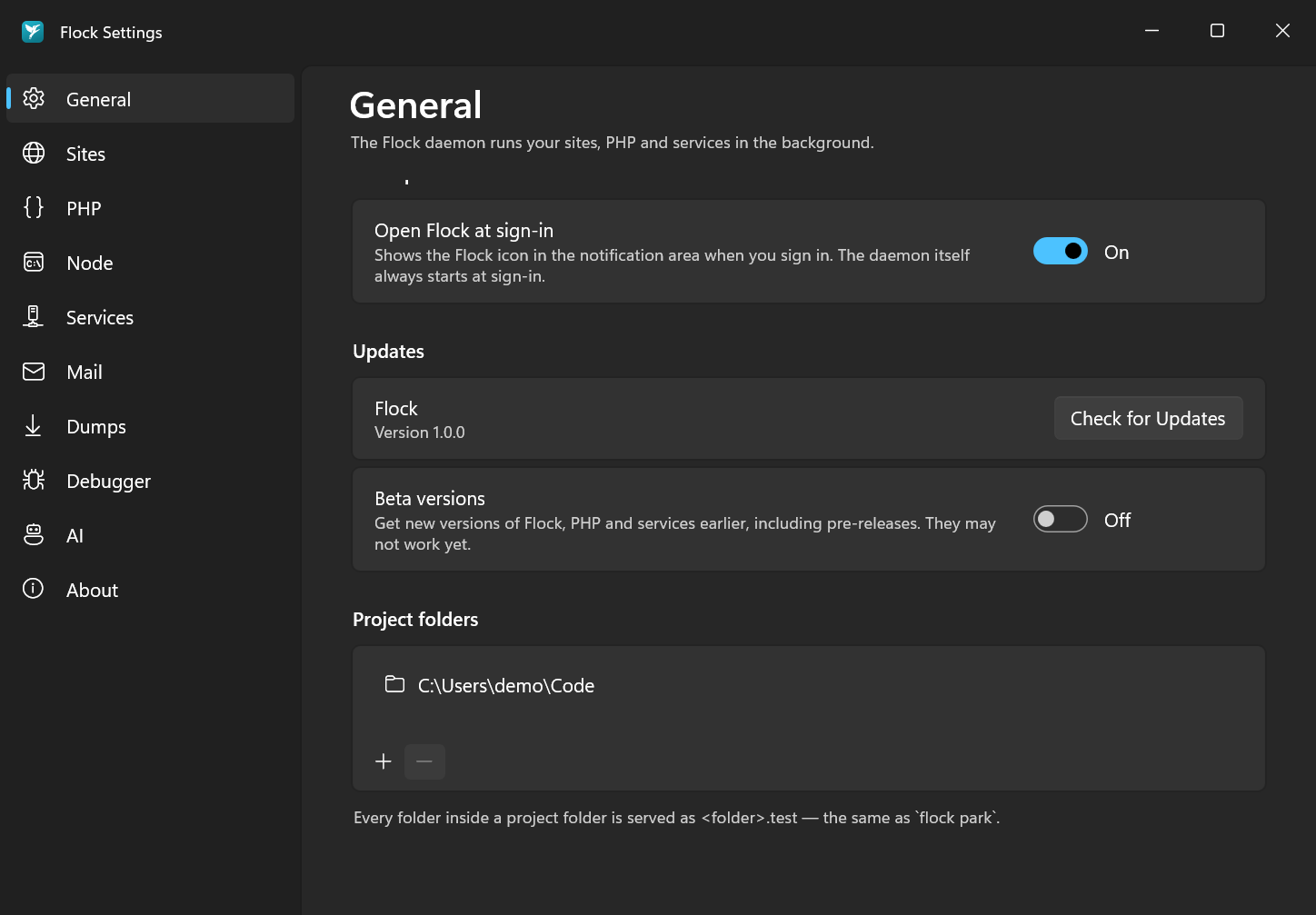
To park a folder, open Settings… from the Flock panel, go to General, and click + under Project folders. Pick ~/Code.
To link a single project instead, go to Sites, click Add Site… and pick ~/Code/acme.
cd ~/Code
flock park
or
cd ~/Code/acme
flock link
Open http://acme.test. That's it.
3. Turn on HTTPS
In Settings → Sites, switch on HTTPS in the acme row.
flock secure acme
Then update APP_URL in your .env to https://acme.test. Flock reminds you if it doesn't match.
4. Pick the PHP and Node versions
Pin the versions for the project. Flock writes them to .flockrc (PHP) and .nvmrc (Node), which you can commit.
In Settings → Sites, choose the PHP and Node versions in the acme row. Then click the pin icon (macOS) or open the … menu (Windows) and choose Pin PHP 8.5 to Project… and Pin Node 22 to Project….
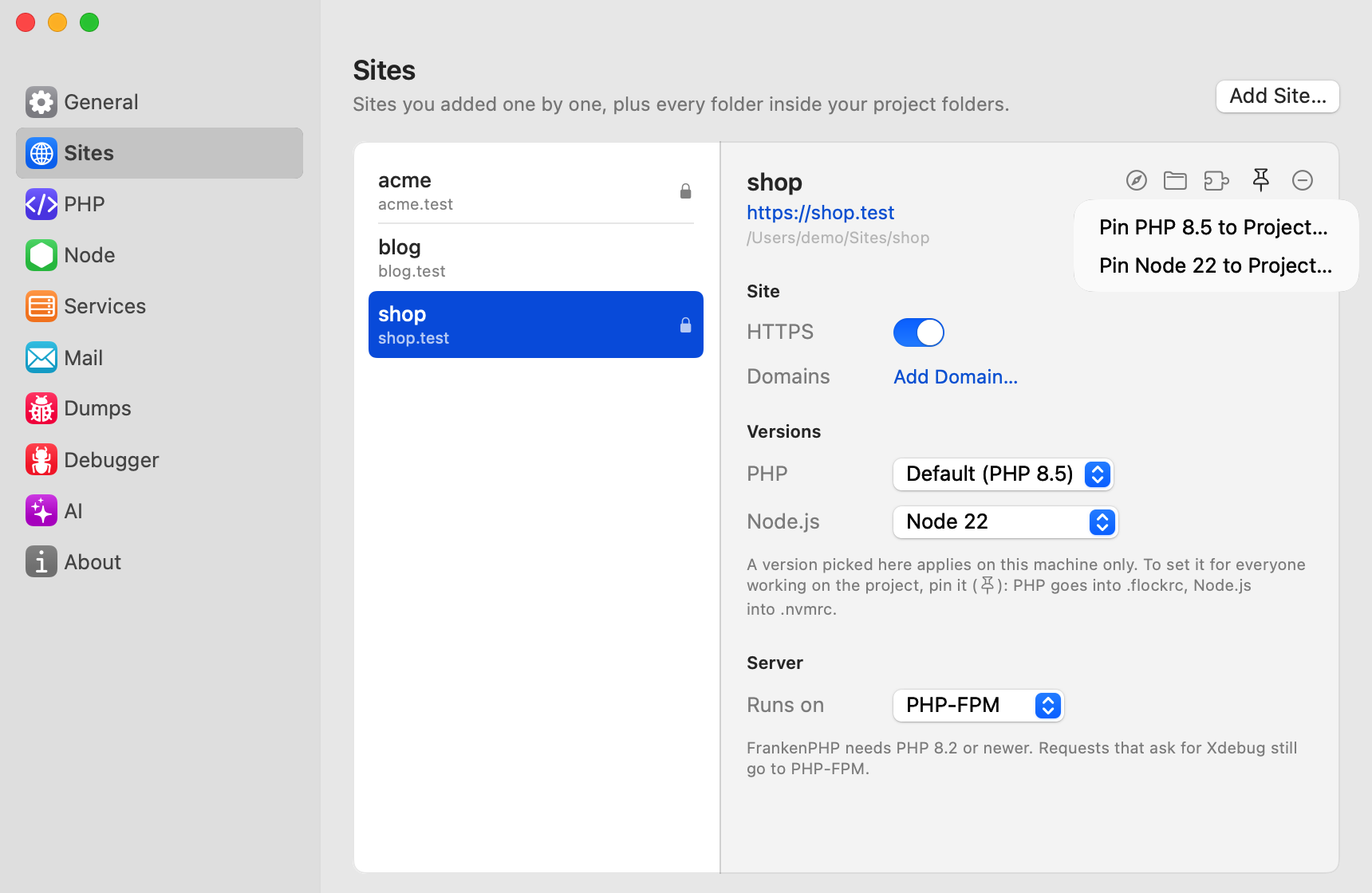
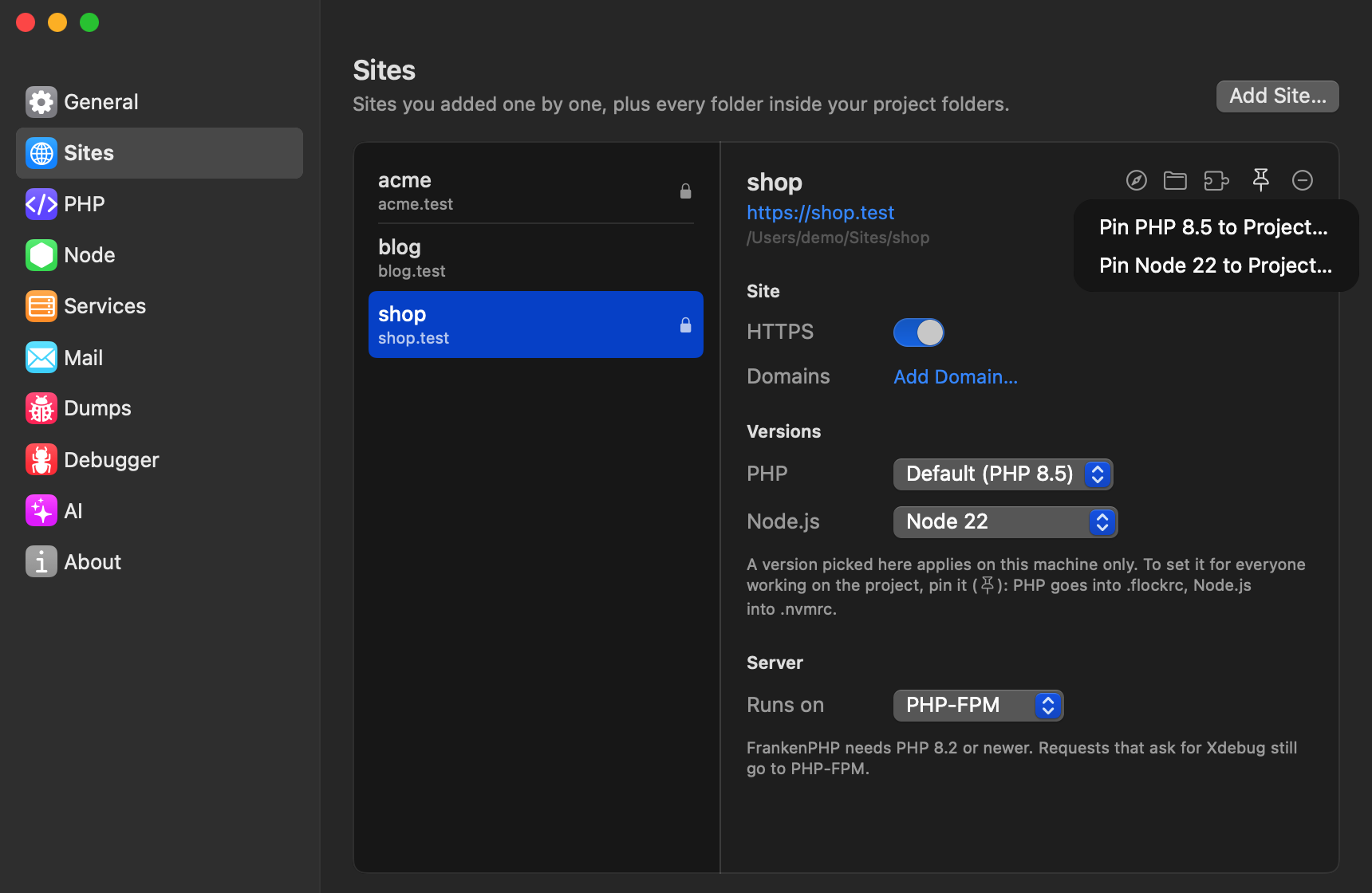
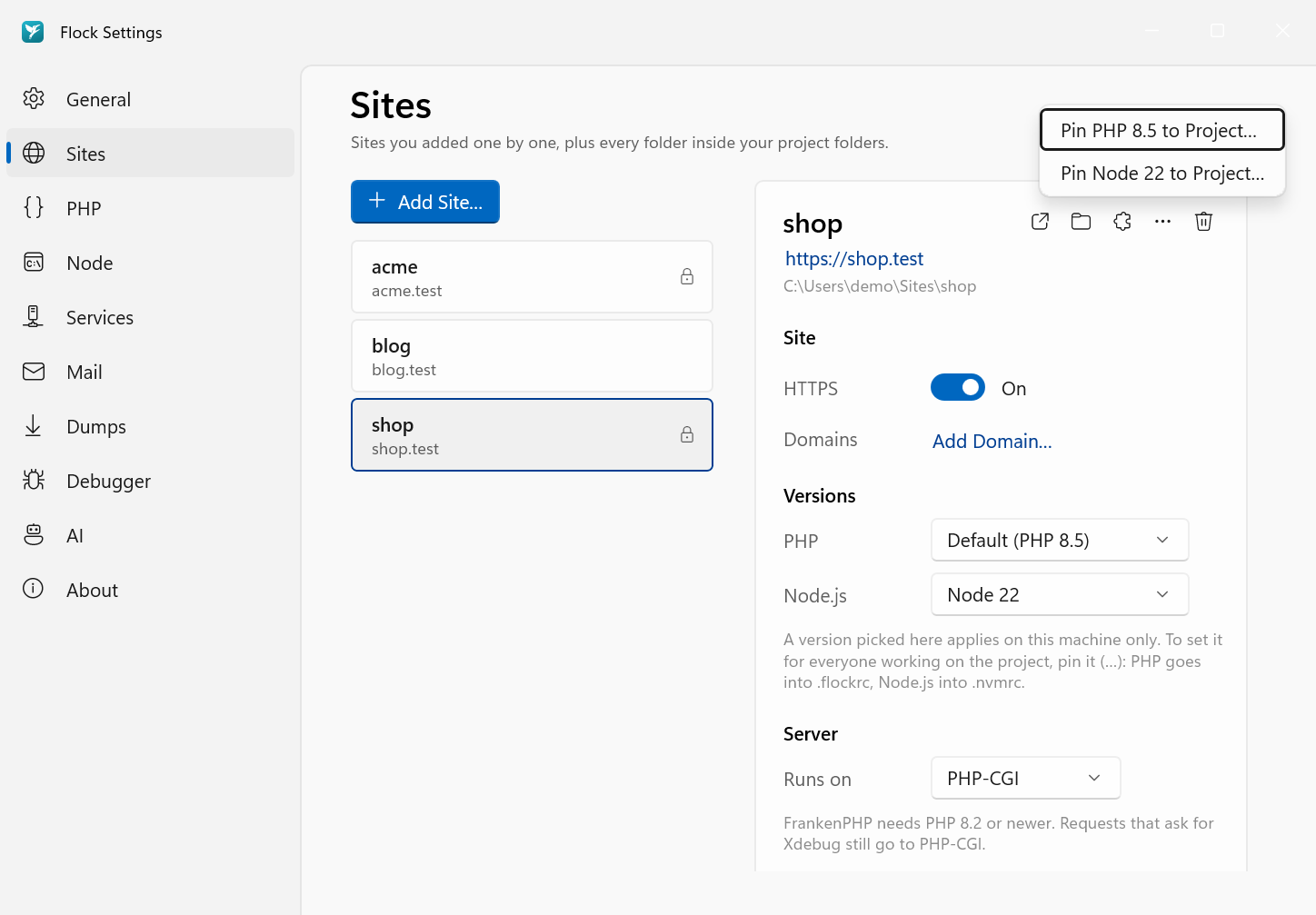
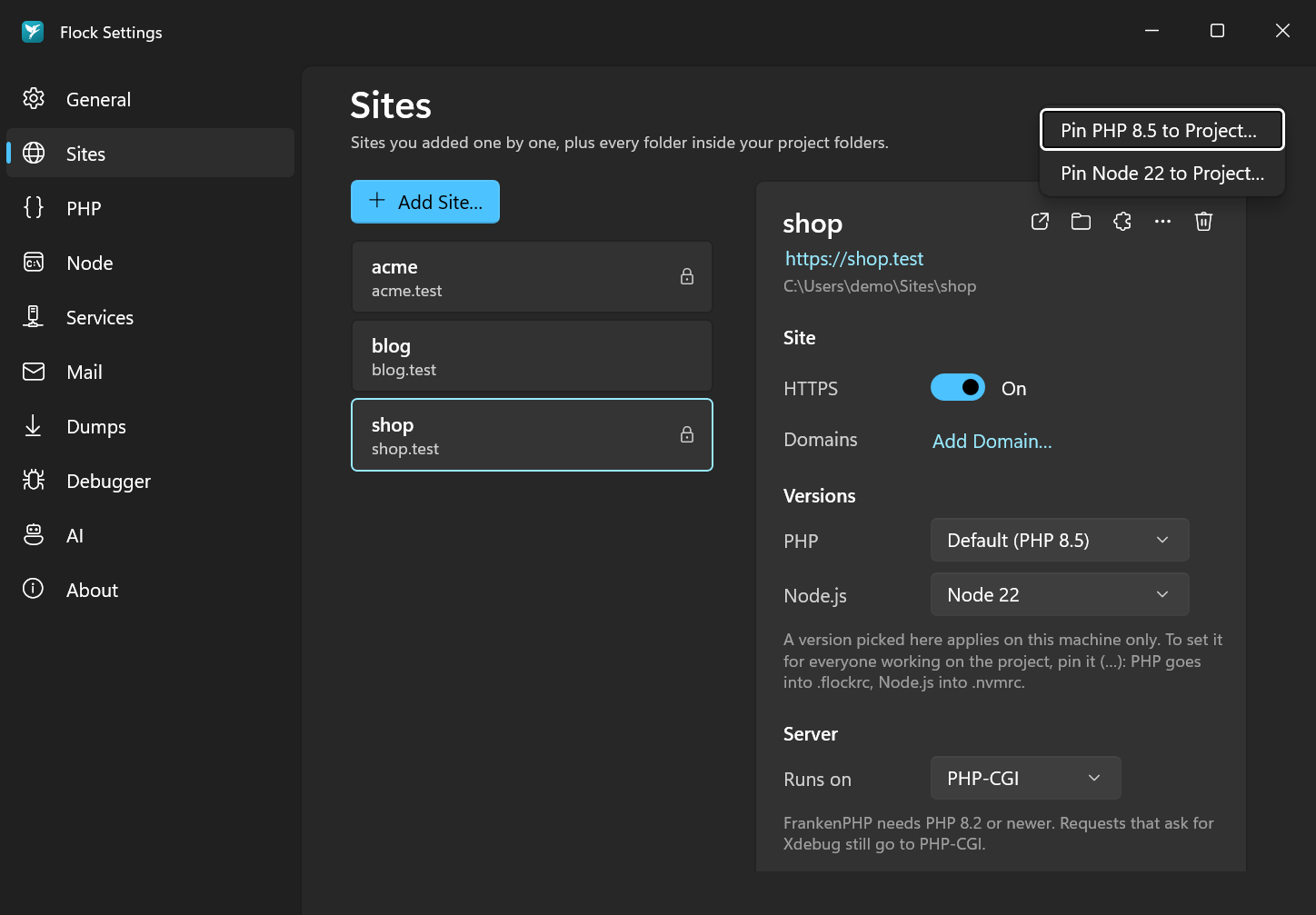
Install versions you don't have yet from the PHP and Node panes first.
flock pin php 8.5
flock pin node 22
If a version isn't installed yet, php and node offer to install it the first time you run them.
5. Add a database
In Settings → Services, switch the filter to All, select PostgreSQL and click Install PostgreSQL 18.
Creating a database isn't in the app yet. Run flock services create-db postgres acme in a terminal, use your database client, or let php artisan migrate create it when it asks.
flock services install postgres
flock services create-db postgres acme
Point your .env at it:
DB_CONNECTION=pgsql
DB_HOST=127.0.0.1
DB_PORT=5432
DB_DATABASE=acme
DB_USERNAME=postgres
DB_PASSWORD=
Prefer MySQL? See Databases & services.
6. Catch mail
Send your app's mail to Flock's catcher:
MAIL_MAILER=smtp
MAIL_HOST=127.0.0.1
MAIL_PORT=2525
MAIL_USERNAME="${APP_NAME}"
MAIL_PASSWORD=null
Click Mail in the Flock panel to read what your app sends.
Run flock mail to list what your app sends.
See Mail.
7. Run it
php artisan migrate
npm install && npm run dev
Your app is live at https://acme.test.
Using an AI agent like Claude Code or Cursor? Connect it to Flock so it knows your sites, versions and logs.