
Node.js
Flock manages Node.js the same way as PHP. Versions are installed side by side, and node, npm and npx pick the right one for each project.
Installing versions
Flock installs the official Node.js builds from its signed package list, the newest release of each major. Node 16 and newer are supported.
Open Settings… from the Flock panel and go to Node. Each major shows its newest release and the npm version that comes with it. Click Install next to a line, or Update to … when a newer release is out. Update npm appears when a newer npm is available, and Check now looks for new releases.
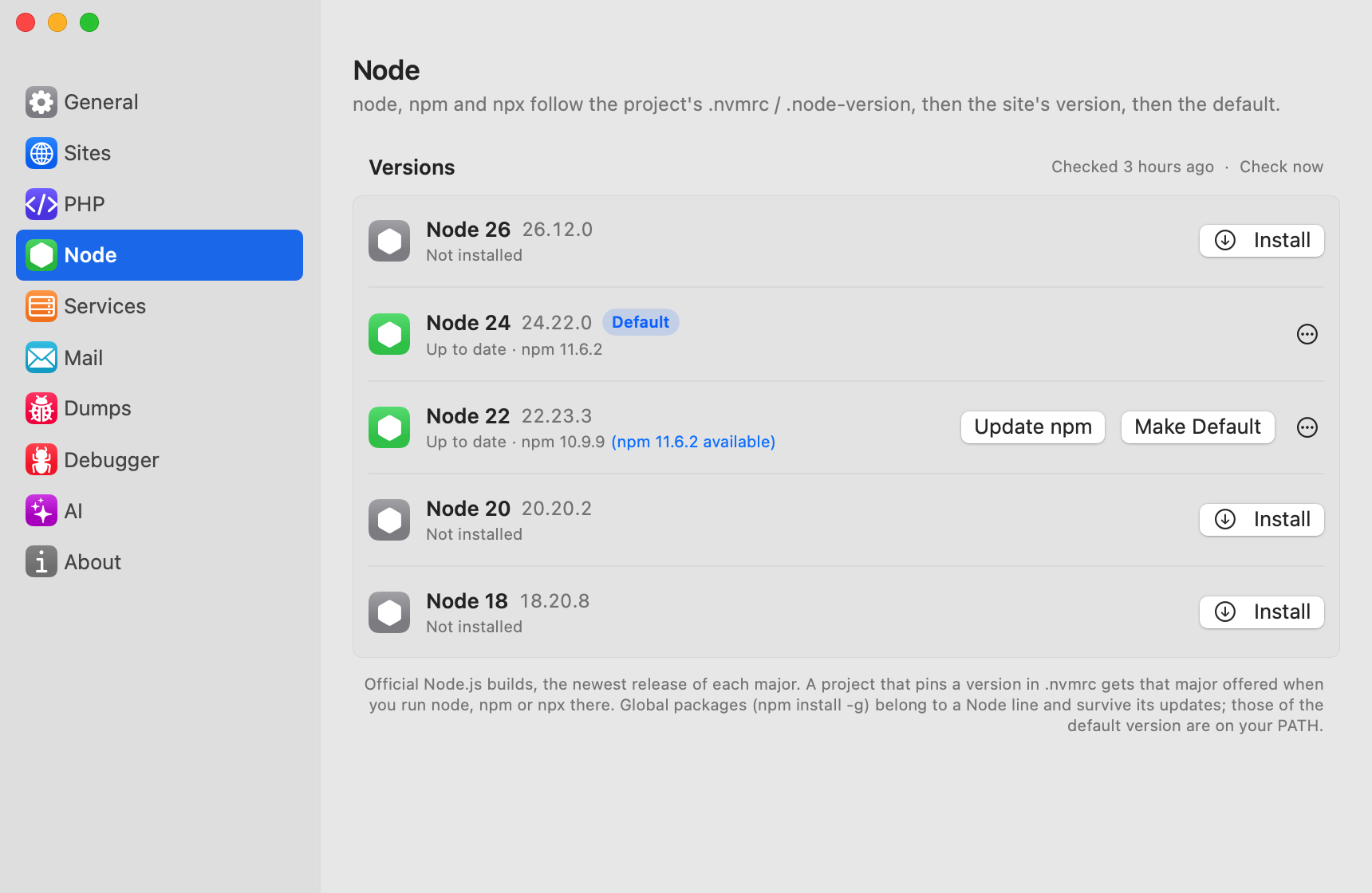
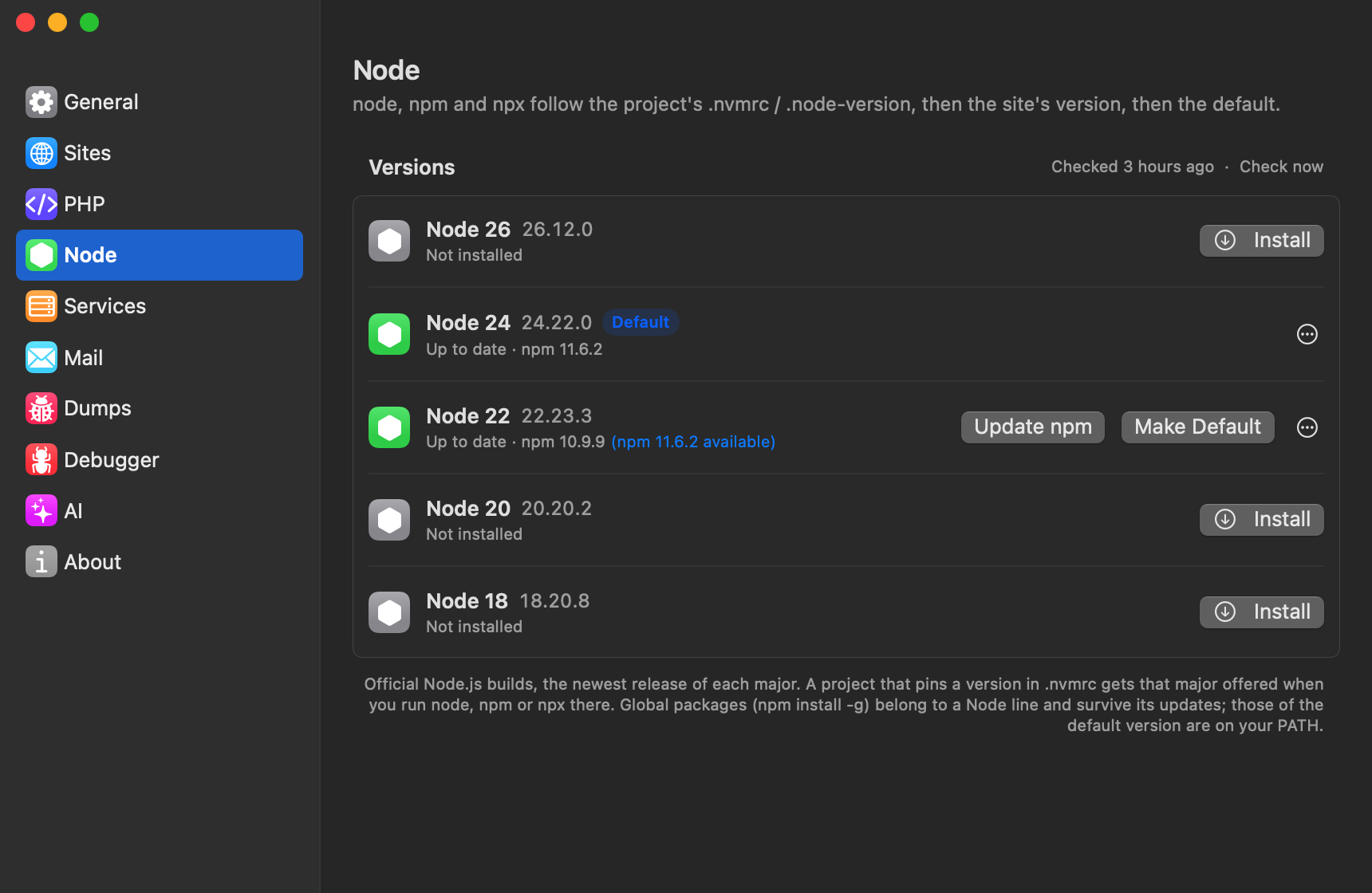
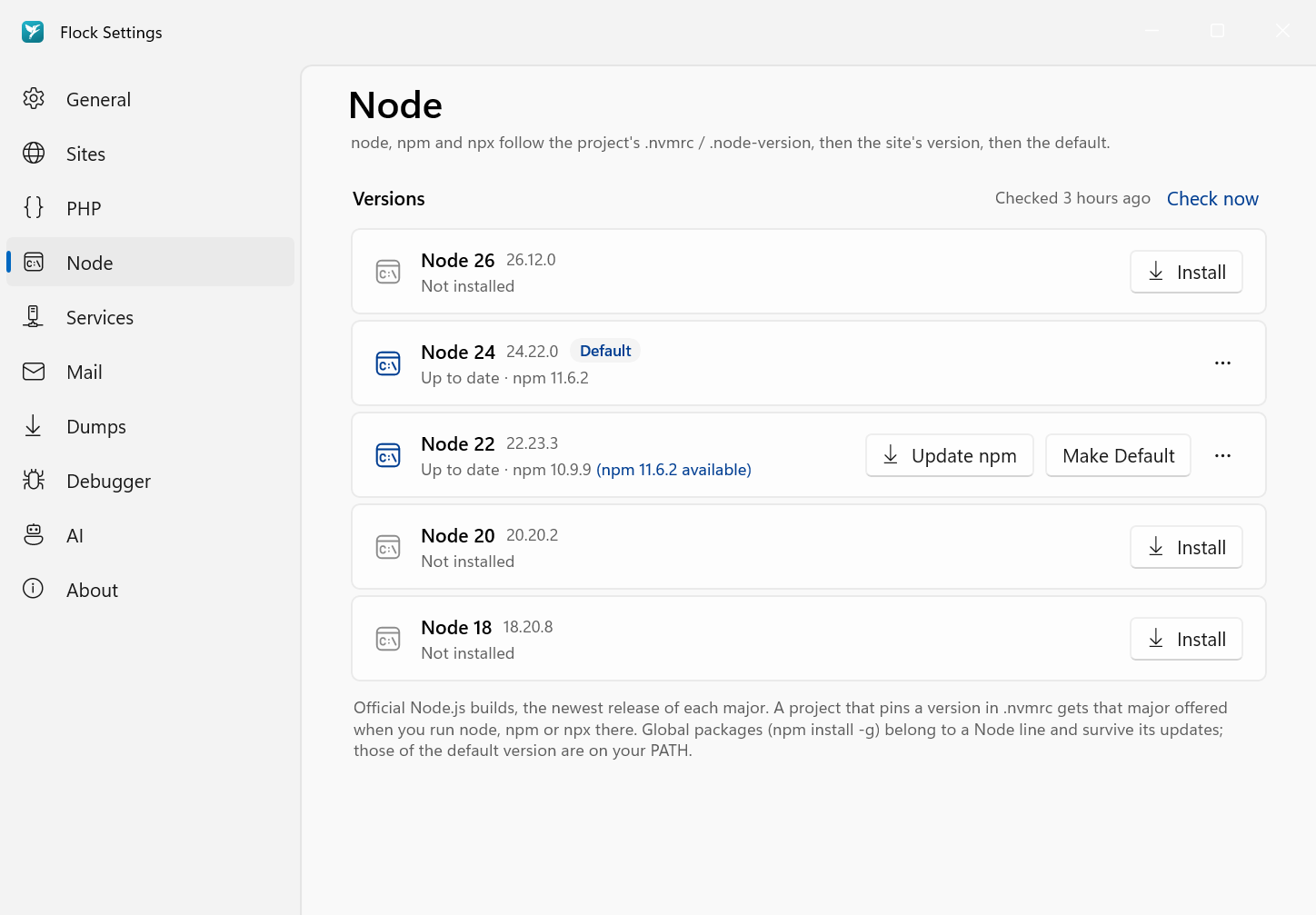
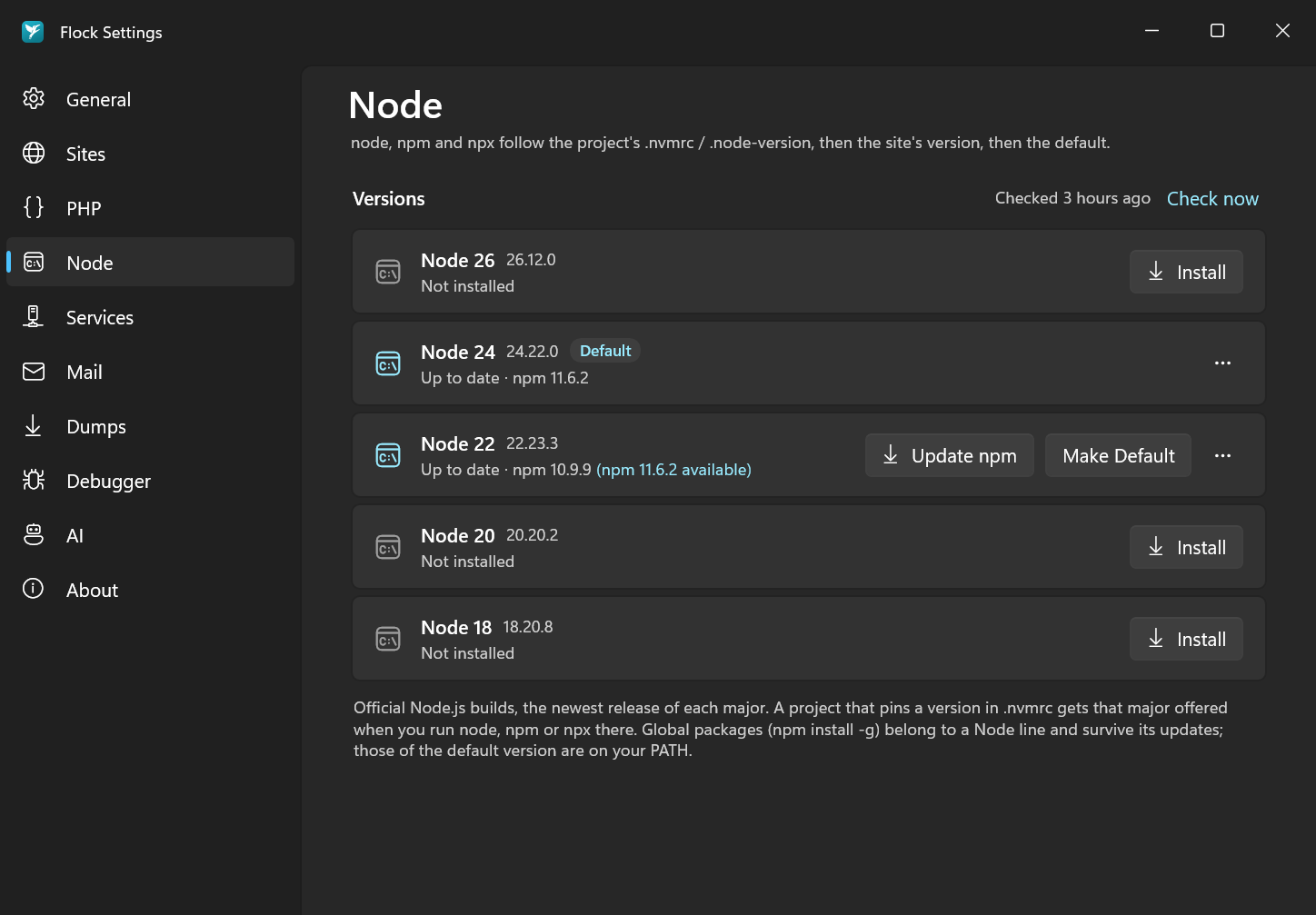
To remove a version, open its ⋯ menu and choose Uninstall….
flock node install 22        # the newest 22.x
flock node install 22.11     # also the newest 22.x
flock node list
The default version
In Settings → Node, click Make Default next to the line you want.
flock node default 22
Per-project versions
Flock picks the Node version in this order:
- a version isolated for the site on your machine,
node=in the project's.flockrc,.nvmrcor.node-version,- the default.
Most projects already have an .nvmrc, so they work without any changes.
A project that pins an exact release (22.11.0 in .nvmrc) gets the newest release of that major, since Flock keeps one release per major; flock node install says so when it installs it.
Choose a version for a site in Settings → Sites to isolate it, or pin it to the project with Pin Node 22 to Project….
Isolate a version with flock isolate node 20. flock pin node 22 writes to whichever of the project files the project already uses, or creates an .nvmrc.
See Per-project versions.
Global packages
Packages installed with npm install -g belong to their Node line (for example 22) and survive updates within it. The global packages of your default version are on your PATH.