

Logs
Laravel logs
The Logs window in the Flock app reads each site's storage/logs and splits the files into individual entries, with their level, environment, message and details such as stack traces.
Click Logs in the Flock panel. On Windows, it's also in the tray icon's right-click menu. Pick a site under Sites in the sidebar, then filter by level (for example Error and above) or search to find the entry you're looking for. Auto-refresh keeps the list up to date, and Clear empties the site's log.
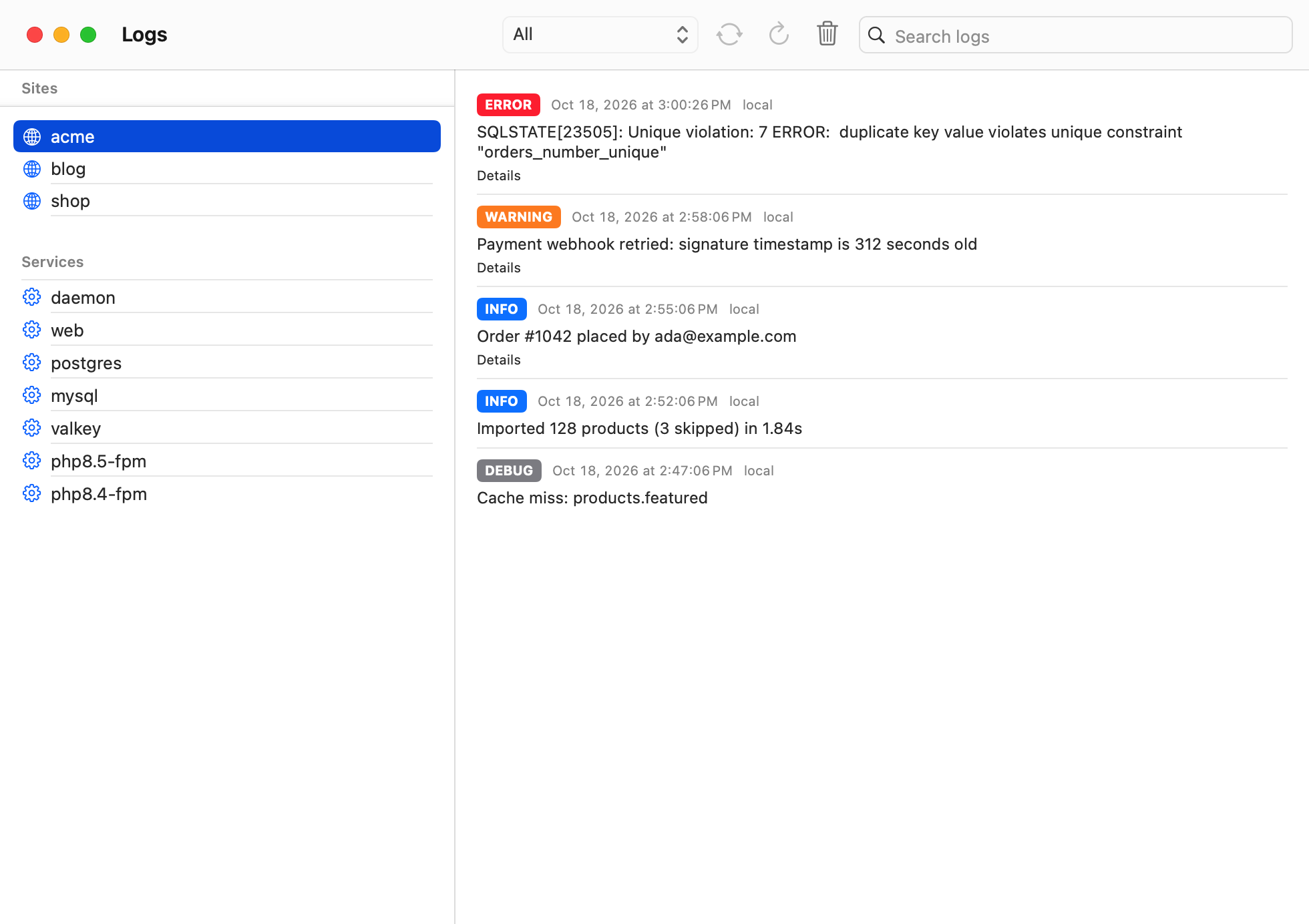
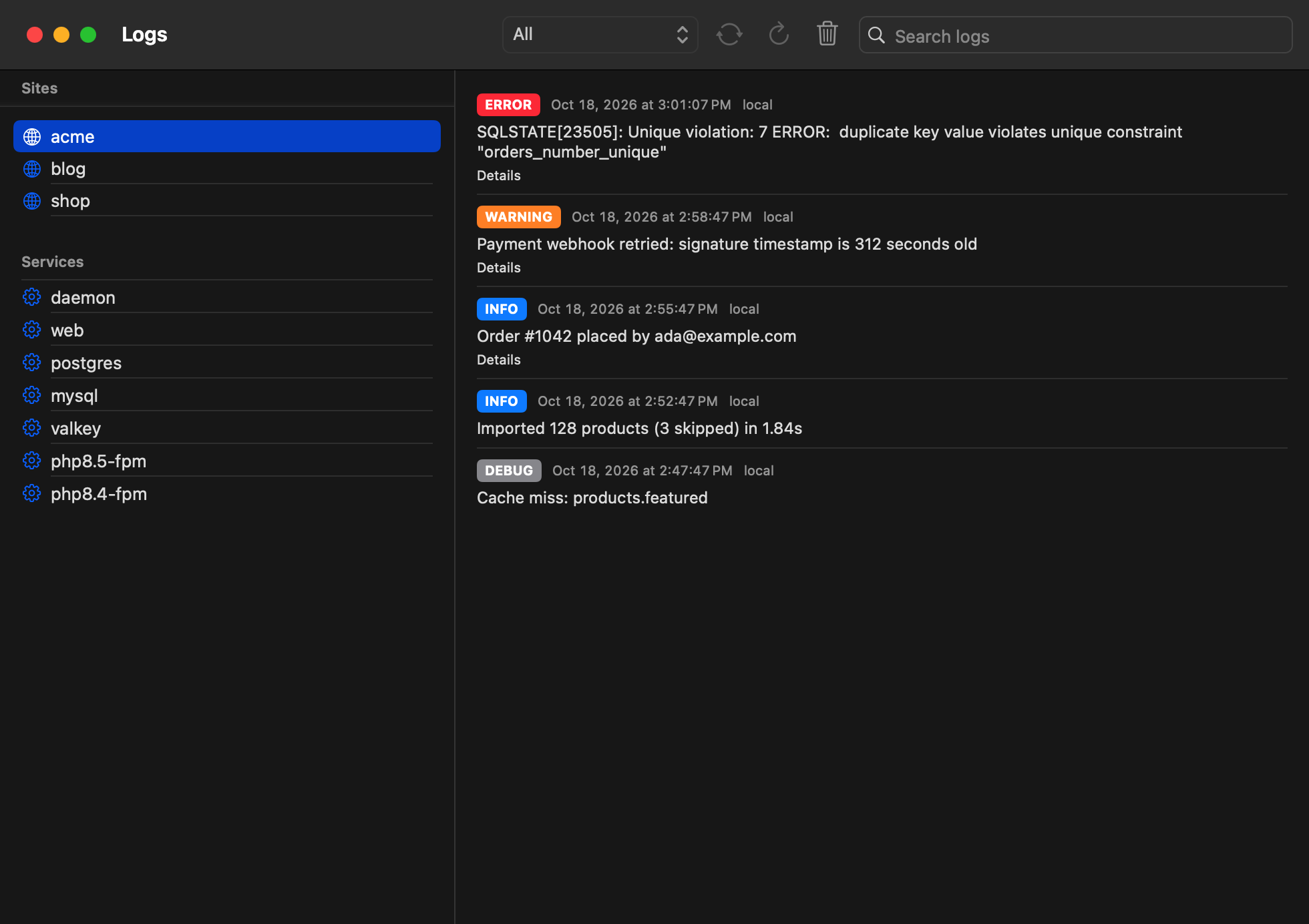
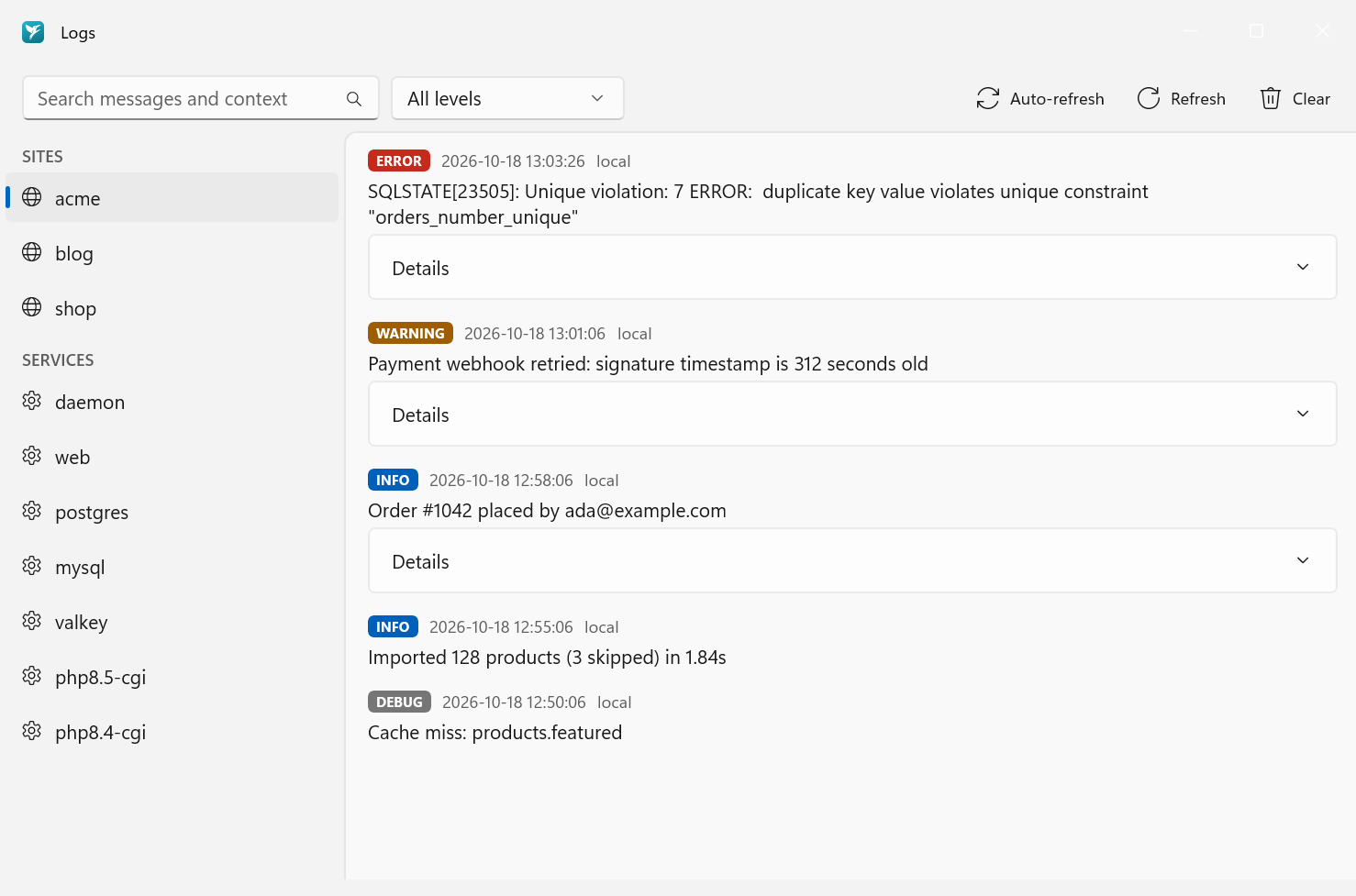
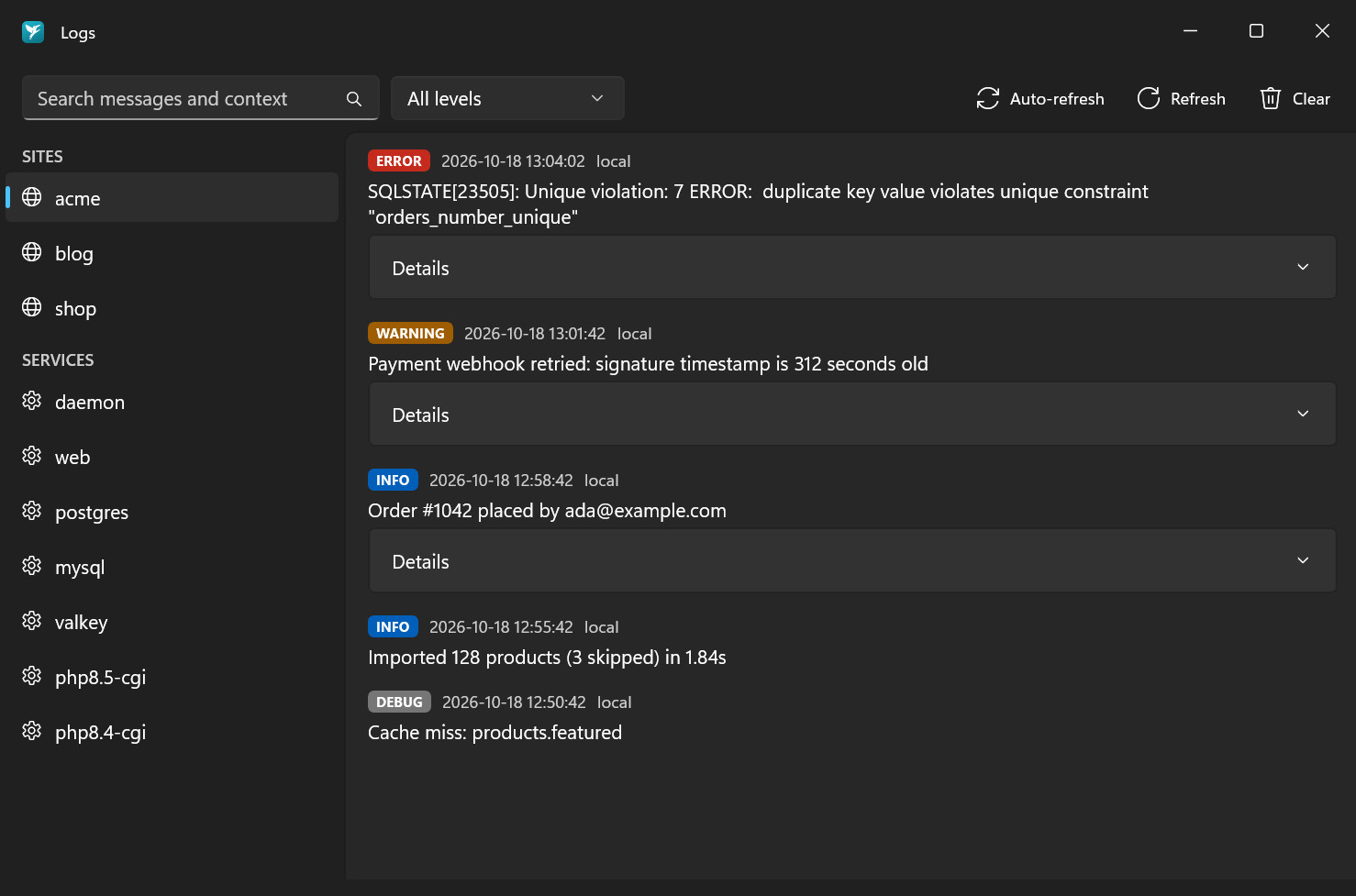
The Logs window is part of the app. In a terminal, read the files in storage/logs directly, for example with php artisan pail or tail -f storage/logs/laravel.log.
Flock's own logs
The logs of Flock's services are there too: the daemon, the web server, PHP and every database.
Pick a service under Services in the sidebar of the Logs window.
flock logs daemon      # the last 50 lines of the daemon log
flock logs web
flock logs postgres -n 200
flock logs php8.5-fpm -f   # follow, like tail -f
Checking health
The top of the Flock panel says Running when everything is fine, or Needs attention with a banner that explains what's wrong. The Services section shows a status dot for every service. If something isn't working, start here.
To restart everything, click Restart at the bottom of the panel, or Restart Daemon in Settings → General.
flock status
This shows the state of the daemon and every service, and whether .test domains resolve. If something isn't working, start here.
To restart everything:
flock restart