

Installation
Download the installer for your platform from the download page. The Windows and macOS apps are code-signed, and the macOS app is notarized by Apple, so they open without security warnings. On Linux, Flock comes as a .deb or .rpm package from its own signed package repository.
Windows
Requirements: Windows 10 (version 2004 or newer) or Windows 11, x64, and the Microsoft Visual C++ Redistributable, which PHP needs.
- Run
Flock-Setup-<version>-x64.exe. The installer itself doesn't need administrator rights. - The tray app opens with the first-run setup. Optionally keep Open Flock when I sign in checked.
- Click Set up Flock. Windows asks for administrator approval once.
The setup:
- adds Flock's
binfolder (with thephp,composer,nodeandnpmshims) to your PATH, - registers the Flock Daemon scheduled task, which starts at sign-in without a console window,
- routes
*.testto Flock's DNS server with a name-resolution policy rule, and installs a small helper service that keeps a# BEGIN Flockblock in your hosts file as a fallback, - adds Flock's certificate authority to the Trusted Root store.
macOS
Requirements: macOS 15 Sequoia or newer, on Apple silicon (Intel Macs are not supported).
- Open
Flock-<version>-macOS.dmgand drag Flock to Applications. - Start Flock. A bird appears in your menu bar and the first-run setup opens.
- Optionally keep Open Flock's menu bar app at login checked.
- Click Set Up Flock. macOS asks for your password twice: once to add the DNS resolver, and once to trust Flock's certificate authority.
The setup adds the shims to your PATH, registers a launchd agent for the daemon, writes /etc/resolver/test so .test names go to Flock's DNS server, and trusts the certificate authority in your login keychain.
Linux
Requirements: Ubuntu 24.04 or newer or a current Fedora release, on x64 or arm64, or Arch Linux on x64, with systemd-resolved as the system's DNS resolver (the default on Ubuntu and Fedora; on Arch, see below).
-
Install the package for your system. In the folder you downloaded it to, run:
sudo apt install ./flockphp_<version>_amd64.deb     # Ubuntu
sudo dnf install ./flockphp-<version>.x86_64.rpm    # Fedora
On arm64, the files end in
_arm64.deband.aarch64.rpm. The package also adds Flock's package repository, so new versions of Flock come with your system's updates. Beta versions in General, orflock channel beta, switches it to Flock's betas.On Arch, Flock is the
flockphp-binpackage in the AUR. Install it with your AUR helper, and switch to systemd-resolved, which Arch doesn't use until you enable it:yay -S flockphp-bin # or: paru -S flockphp-bin sudo systemctl enable --now systemd-resolved sudo ln -sf ../run/systemd/resolve/stub-resolv.conf /etc/resolv.confNew versions of Flock come with your AUR helper's updates (
yay -Syu). Flock's betas are the packageflockphp-beta-bin: installing it replacesflockphp-binand keeps your setup, and installingflockphp-binagain goes back. Beta versions in General, orflock channel beta, also switches PHP and the services to their betas. -
Open Flock from your apps. The Flock window opens with the first-run setup. Optionally keep Open Flock when I log in checked.
-
Click Set Up Flock. Linux asks for your password once.
To set Flock up from the terminal instead, run flk install. The package names the command flk, because /usr/bin/flock is a file-locking tool that every Linux system has. After the setup, flock works too: Flock's own flock comes first on your PATH and hands every command that isn't Flock's to the system's flock, so scripts that use it keep working.
The setup:
- adds Flock's
binfolder to your PATH, in~/.bashrc,~/.zshrc, fish'sconf.dand~/.config/environment.dfor apps started from the desktop, - registers the
flock@<user>systemd service, which starts with your computer, - tells systemd-resolved to send
*.testlookups to Flock's DNS server, - adds Flock's certificate authority to the system's trust store, to Firefox through a policy, and to the certificate databases of Chrome and other Chromium browsers.
Flock also puts an icon in the top bar with its status, your sites, mail, dumps and logs. KDE shows it on its own, and GNOME with the AppIndicator extension, which Ubuntu includes. On Fedora's GNOME, install AppIndicator and KStatusNotifierItem Support to get it. Without the icon, Flock is a regular window that quits when you close it, and the daemon keeps running.
Checking the installation
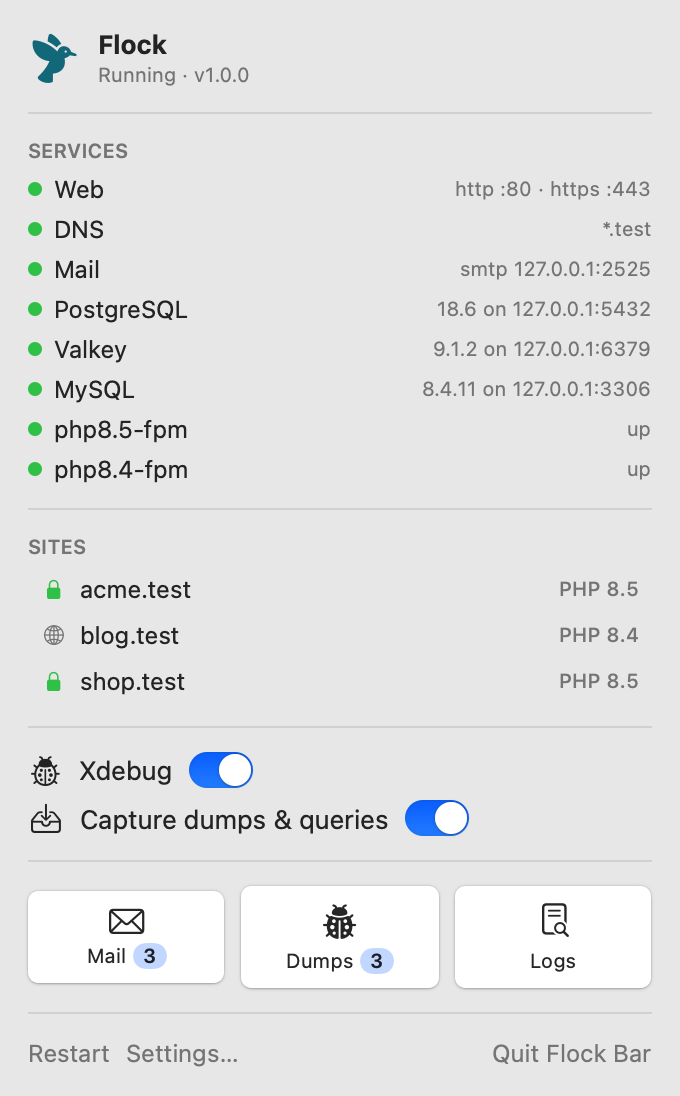
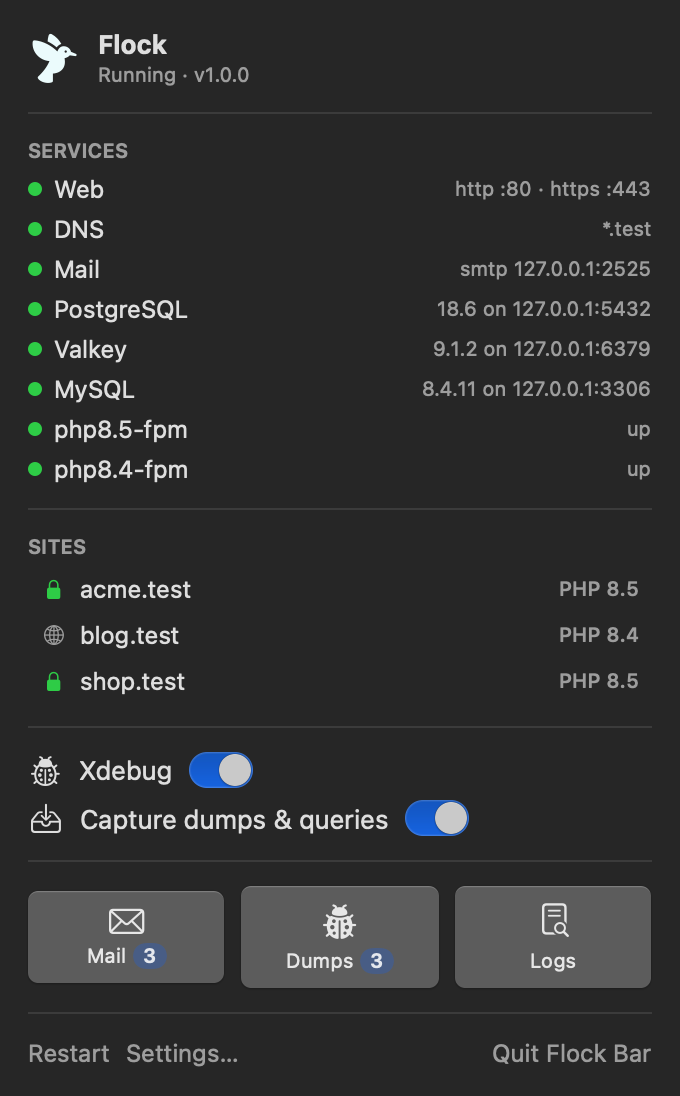
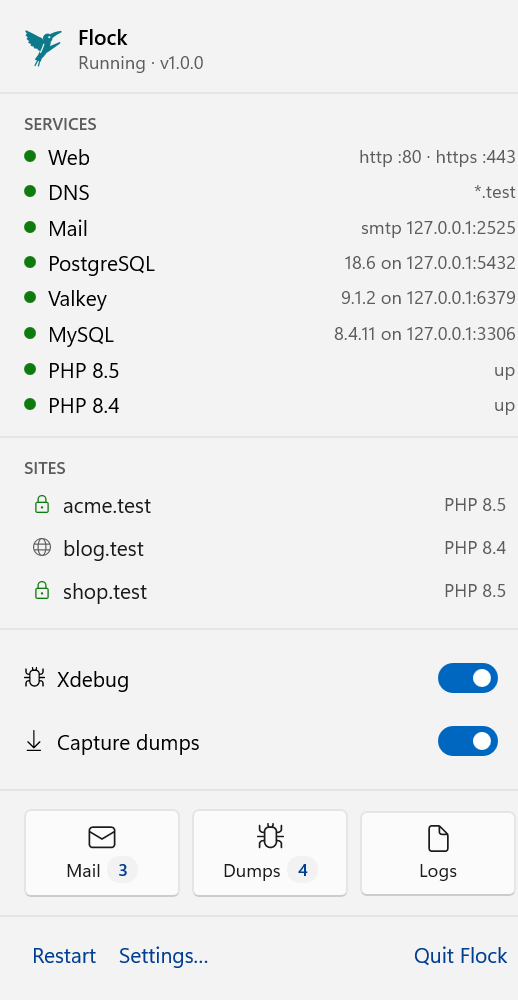
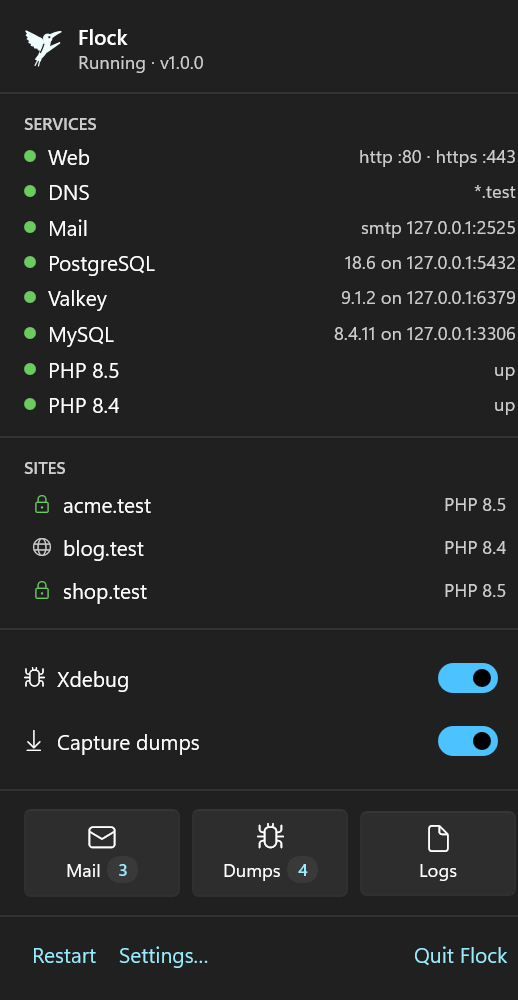
Click the bird in the menu bar (macOS) or the tray icon (Windows). The top of the panel should read Running, followed by the Flock version, and every service listed under Services should have a green dot. On Linux, open Flock: Running and the version are under the window's title, and General shows no warnings.
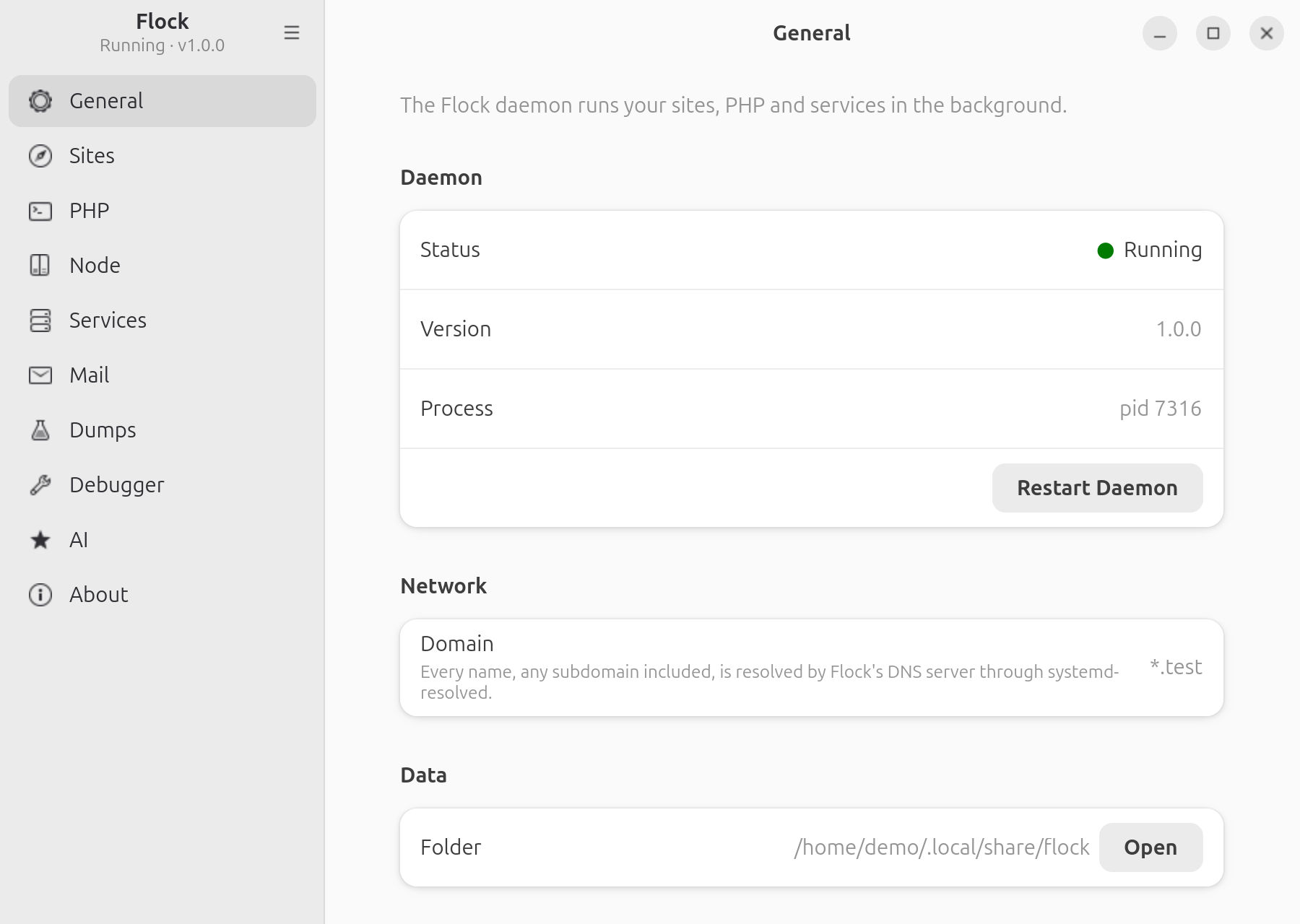
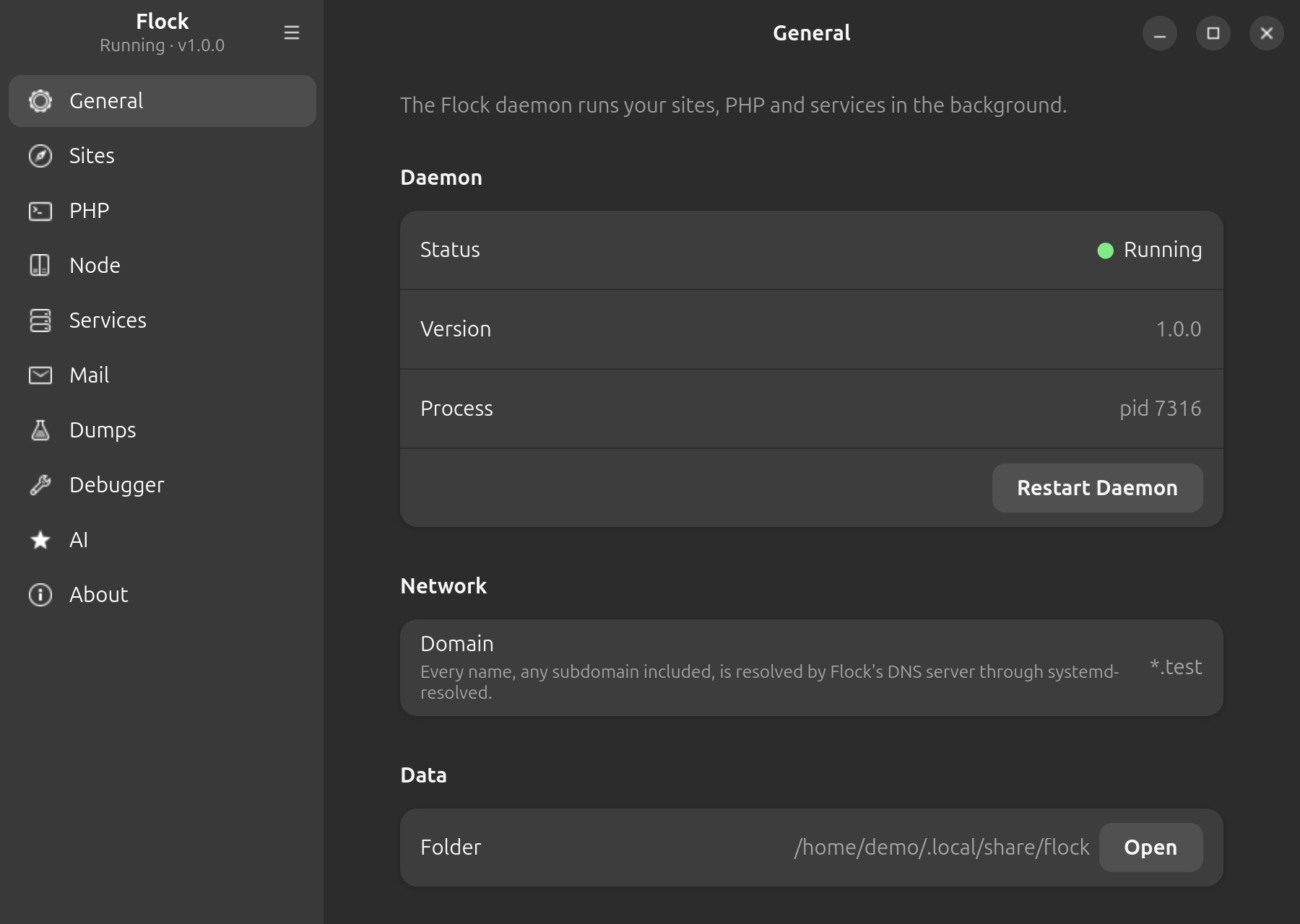
Open a new terminal (so it picks up the new PATH). php -v and node -v should print Flock's versions.
Open a new terminal (so it picks up the new PATH) and run:
flock status
It shows the daemon, web server, DNS and every service, and whether .test names resolve. php -v and node -v should print Flock's versions.
Ports
Flock needs ports 80 and 443 for the web server. If another program uses them, for example another local environment, IIS or Apache, Flock tells you which program it is. On Linux, it also gives you the command that stops it, such as sudo systemctl disable --now apache2.
Stop that program, then click Restart at the bottom of the Flock panel. On Linux, click Restart Daemon in General.
Stop that program and run flock restart.